Plugin Management
Plugins are the primary way to extend Jenkins and adapt it to your organization’s automation needs. Jenkins offers thousands of plugins that integrate popular build tools, testing frameworks, cloud platforms, and monitoring systems.
These plugins are maintained by the Jenkins community and can be installed directly from the Jenkins Update Center, which automatically handles all required dependencies.
How Jenkins Plugins Are Installed
There are two main ways to install plugins on a Jenkins controller:
- Using the Plugin Manager in the Jenkins Web UI
-
Using the Jenkins CLI with the
install-plugincommand
Both methods achieve the same result, but the Web UI is the most commonly used and beginner-friendly approach.
Installing Plugins Using the Web UI
- Log in to Jenkins as an administrator.
- Click Manage Jenkins from the left-hand menu.
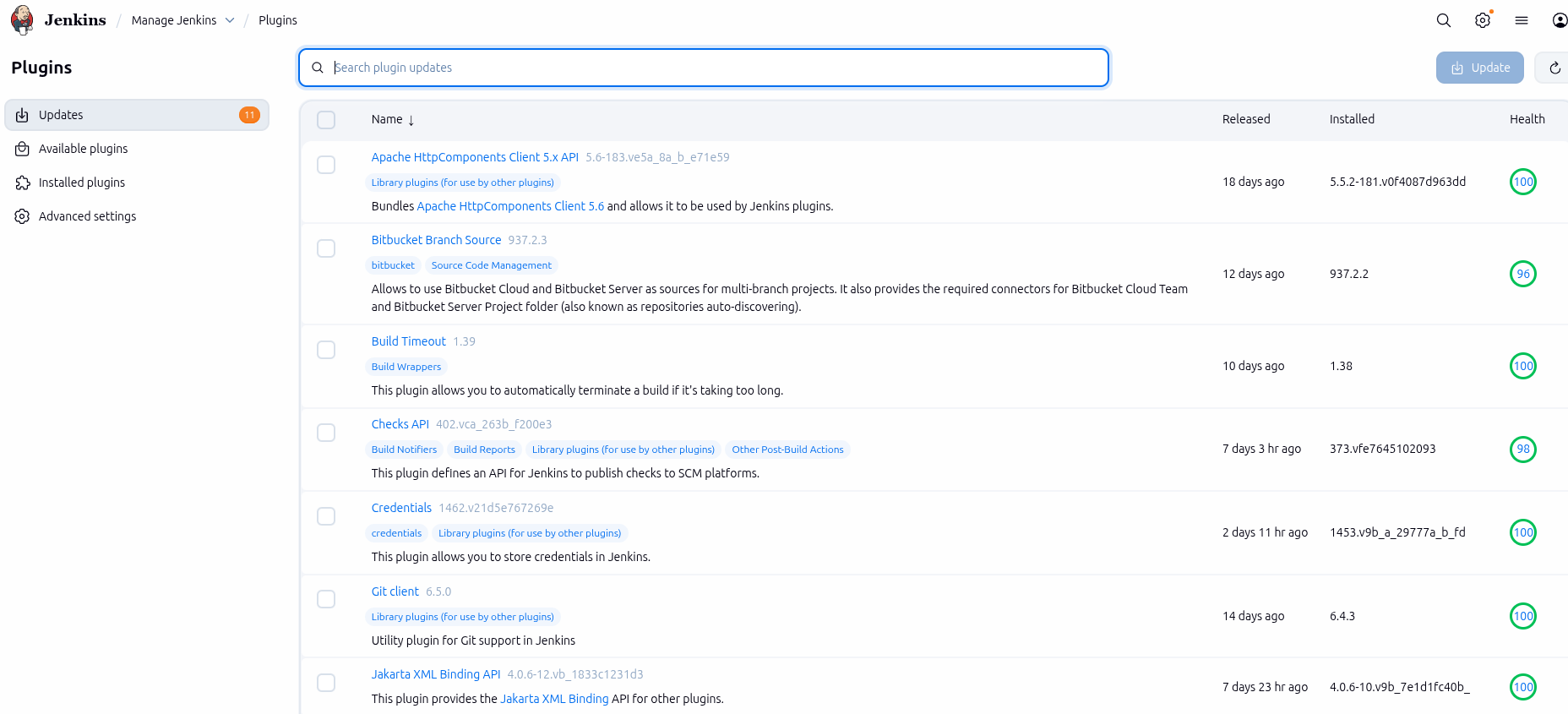
- Select Plugins (or Manage Plugins).
- Open the Available tab to browse plugins from the Jenkins Update Center.
- Use the search bar to find the plugin you need.
- Select the plugin and click Install without restart (or restart Jenkins if required).
Insert "Manage Jenkins" Screenshot Here
Insert "Available Plugins" Screenshot
Once installed, the plugin becomes available immediately and can be used in your Jenkins jobs, pipelines, and global configurations.